

How To Clear The Filter In Excel
Bottom line: Learn how to clear all filters, and filters on a single column with VBA macros. Includes code examples for regular ranges and Excel Tables.
Skill level: Intermediate
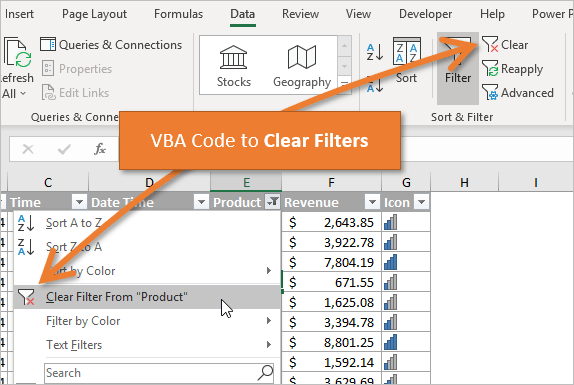
Download the File
The Excel file that contains the code can be downloaded below. This file contains code for filtering different data types and filter types. Please see my article on The Ultimate Guide to AutoFilters in VBA for more details.
 VBA AutoFilters Guide.xlsm (100.5 KB)
Clear All Filters from a Range
We use the ShowAllData method to clear all filters applied to a range.
This is the same as clicking the Clear button on the Data tab of the ribbon (keyboard shorcut: Alt, A, C)
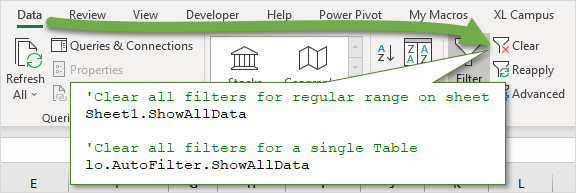
Only one filter range can be applied to a worksheet, so we are actually clearing the filters on the sheet.
Sub Clear_All_Filters_Range()'To Clear All Fitlers use the ShowAllData method for'for the sheet. Add error handling to bypass error if'no filters are applied. Does not work for Tables.On Error Resume Next Sheet1.ShowAllDataOn Error GoTo 0 End Sub ShowAllData Method Error
If there are no filters are applied to any column, then the ShowAllData method will raise an error. It's a Run-time '1004' error with the description: Method 'ShowAllData' of object '_Worksheet' failed.
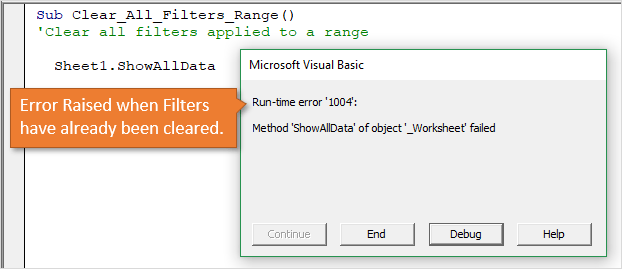
The On Error Resume Next line will bypass that error. On Error GoTo 0 resets that so errors are raised in any lines of code below.
Note: When the ShowAllData method is referenced as a member of the sheet, it does NOT clear filters that are applied to Excel Tables (ListObjects) unless a cell is selected in the Table. Therefore, it's best to use the code below for Tables.
Clear All Filters from an Excel Table
To clear all filters on an Excel Table (ListObject) we also use the ShowAllData method. In this case, ShowAllData is a member of the AutoFilter property of the ListObject object.
Sub Clear_All_Filters_Table() Dim lo As ListObject'Set reference to the first Table on the sheetSet lo = Sheet1.ListObjects(1)'Clear All Filters for entire Table lo.AutoFilter.ShowAllData End Sub Clear All Filter from All Tables on a Sheet
The code above will only clear filters for a single Table. We can loop through the Tables on the sheet to clear all filters from each Table.
Sub Clear_All_Table_Filters_On_Sheet() Dim lo As ListObject'Loop through all Tables on the sheetFor Each lo In Sheet1.ListObjects'Clear All Filters for entire Table lo.AutoFilter.ShowAllDataNext lo End Sub Clear Filters on a Single Column
To clear filters on a single column we use the AutoFilter method. We only reference the Field parameter and set the value to the number of the column we want to clear.
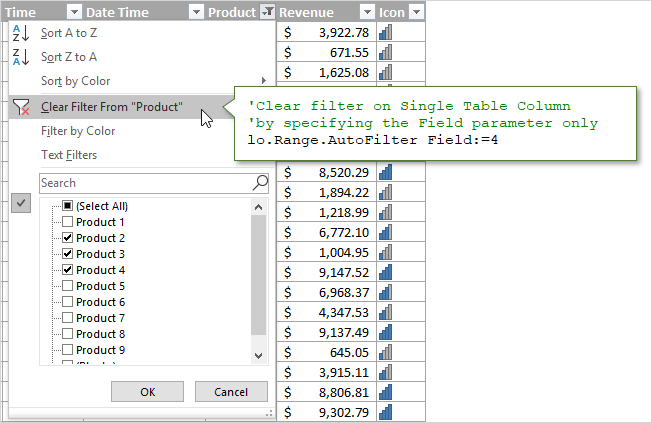
Sub Clear_Column_Filter_Range()'To clear the filter from a Single Column, specify the'Field number only and no other parameters Sheet1.Range("B3:G1000").AutoFilter Field:=4 End Sub The Field is the column number of the range the filters are applied to, NOT the column number of the worksheet.
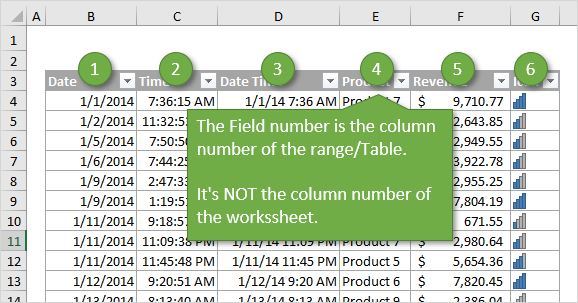
The same technique is use to clear filters applied to a column in a Table. In this case the AutoFilter method is a member of the Range object of the ListObject.
Sub Clear_Column_Filter_Table() Dim lo As ListObject'Set reference to the first Table on the sheetSet lo = Sheet1.ListObjects(1)'Clear filter on Single Table Column'by specifying the Field parameter only lo.Range.AutoFilter Field:=4 End Sub Filters & Data Types
The filter drop-down menu options change based on what type of data is in the column. We have different filters for text, numbers, dates, and colors. This creates A LOT of different combinations of Operators and Criteria for each type of filter.
I created separate posts for each of these filter types. The posts contain explanations and VBA code examples.
- How to Filter for Blank & Non-Blank Cells
- How to Filter for Text with VBA
- How to Filter for Numbers with VBA
- How to Filter for Dates with VBA
- How to Filter for Colors & Icons with VBA
The file in the downloads section above contains all of these code samples in one place. You can add it to your Personal Macro Workbook and use the macros in your projects.
Please leave a comment below with any questions or suggestions. Thanks! 🙂
How To Clear The Filter In Excel
Source: https://www.excelcampus.com/vba/clear-filters-showalldata/
Posted by: maxwelldayse1969.blogspot.com
0 Response to "How To Clear The Filter In Excel"
Post a Comment